


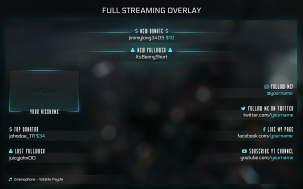
The Rainbow Six Siege Twitch Overlay Pack is a compact set of graphics for Siege streamers: a top menu overlay, a webcam frame and a blank panel you can reuse for every section of your channel bio. It fits Rainbow Six Siege perfectly and works well with other games too.
What is in the download
- Overlay: Twitch overlay top menu
- Webcam frame: Twitch webcam overlay
- Panel: one blank panel for your own titles
- Format: separate PNG images you can move and resize, with setup instructions for OBS and XSplit
When to use it
- Give a Siege channel a themed layout, and position each piece so the round timer and team info stay visible.
- Put your name, socials or current rank as text in the top menu, so it updates without editing the image.
- Use the blank panel as the base for About Me, Rules, Schedule and other sections: upload it once per section and write the title in the panel description.
- Use it for other tactical shooters, since the design is not tied to Siege’s HUD.
How to set up the Rainbow Six Siege graphics in OBS Studio
- Unzip the download. Each element (top menu, webcam frame and so on) is its own PNG file.
- In your gaming scene, add your game capture first, then add each graphic as an Image source above it.
- Drag and resize the graphics into place around the game HUD; because they are separate files, you can build the layout you want.
- Add your camera as a Video Capture Device under the webcam frame, and add text sources or Streamlabs/StreamElements widgets for your name, socials and latest supporters.
- Upload the panels on your Twitch channel under About > Edit Panels, one per section.
The same steps work in Streamlabs Desktop and XSplit. See our guide on adding a stream overlay to OBS Studio for screenshots.
Frequently asked questions
Is my name or text already on the overlay?
No. The bars have empty spaces, and you add live text or widgets on top in OBS. That way your name, socials and latest supporters update automatically and you never need to edit the image.
Does the pack include alerts?
No. The pack contains the top menu, the webcam frame and a blank panel. Any alert tool’s default alerts, or one of our alert packs, can be used alongside it.
Does it work if I stream at 720p or 936p?
Yes. Keep your OBS canvas (base resolution) at 1920×1080 and set your output resolution lower; OBS scales the whole scene, overlay included, when it encodes the stream.
Need a different color, your channel name on the graphics or extra panels? We make custom Twitch graphics to order.


Reviews
There are no reviews yet.